Explore the knowledge base through the menu on the left.
Search for answers by refining the results through the drop-down categories.
-
General FAQ
-
ZowieBoxPro
-
- How to supply power for ZowieBox Pro
- How to use touch screen of ZowieBox Pro
- Does ZowieBox Pro support PoE?
- How to connect your Zowietek device via ZowieX
- How to Connect ZowieBox with Your Devices?
- What is the login account and password
- How to set the IP address for ZowieBox Pro
- If I didn't have LAN, how can I visit ZowieBox Pro?
- How to reset ZowieBox Pro to Factory Default
- Will settings be saved after power loss?
- How to manually update firmware for ZowieBox Pro
- How to upgrade firmware with USB
- How to switch USB between Host / Device mode
- How to switch Encoder / Decoder mode
- How to connect with Nintendo Switch?
- How to connect with PS5/4?
- How to connect with X-Box Series?
- How to switch HDMI loop out and output
- How to use DC Out port to power accessories
- How to connect and control PTZ Camera
- How to use X-Box controller to control PTZ Camera
- How to use NAS to save video files
- ZowieBox Pro Firmware Release Notes
- Show all articles ( 8 ) Show all articles
-
- Recommendations for storage device speed
- Does ZowieBox support OSD?
- Can ZowieBox switch to a still image? Like jpeg that says be right back?
- What USB dongles does ZowieBox support?
- No Ethernet Port on Laptop, how to extend ethernet to use NDI?
- How to improve device temperature and fan sound
- Whether Zowietek Products Support Decimal Resolution Input, Encoding, and Recording
- How to set up PC display adapter settings when ZowieBox identifies the computer signal source as having an incorrect or unsupported resolution
- How to use USB MIC
- If 3.5mm line in audio pass through HDMI output?
- Video file can not be viewed online
- How to check recorder status?
- UVC input compatibility inquiry
- Does ZowieBox Pro's UVC out support Mac?
- How to use the UVC function of DJI
- How to use the UVC to HDMI function
- How to use UVC to NDI function
- How to use ZowieBox Pro connect to Zoom
- Differences between ZowieBox Pro and ZowieBox
- How to recover ZowieBox if it works abnormally after the upgrade
- How to use ZowieAPI with Bitfocus Campanion and Stream Deck for scheduled recording
- What is the Difference Between ZowieBox Pro and ZowieBox?
- what is WiFi6 for?
- How to control a UVC camera by PTZ Controller and ZowieBox
- How to decode a local stream
- How to configure SRT related parameters?
- Show all articles ( 11 ) Show all articles
-
- How to set encoding bitrate
- How to configure SRT Caller Listener Rendezvous Mode
- How to configure SRT related parameters
- How to use SRTMiniServer for streaming
- How to stream to OBS by SRT
- How to decode/encode SRT to ZowieBox Pro using vMix
- How to get RTSP streaming URL
- Does ZowieBox Pro support saving video files to local disk?
- Can I record and encode at the same time?
- How to use video recording function
- What video formats does recording support?
- How to stream to YouTube
- How to stream to Facebook
- How to stream to Twitch
- How to stream to Wowza
- Can I stream to multiple platforms at once?
- Can store multiple streaming keys for YouTube?
- Suggestions for audio asynchrony when streaming to YouTube
- How to use OSD text / timestamp / image overlay
- How to use OSD scoreboards
- How to use AI Tracking function
- How to use Chroma Key green screen
- How to set multi-device NTP time sync
- How to use pure audio only mode
- How to use multi-channel audio?
- Zero-latency HDMI loopout usage for game console
- What is the latency of 4K60 encoding & transmission?
- Bitrates corresponding to different resolutions in NDI encoding mode
- How to perform point-to-point P2P video transmit over LAN
- How to perform point-to-point P2P video transmit over Internet
- How to use AVoIP to NDI encoding function
- Show all articles ( 16 ) Show all articles
-
- How to switch to Decoder mode
- Failover
- How to decode NDI Source
- Can it decode multiple NDI feeds at once?
- Is it possible to decode the NDI® stream emitted by another device using ZowieBox ?
- Why can't it decode NDI from VLC/OBS?
- How to decode a local stream
- How to Use ZowieBox as an RTMP Server for Video Decoding
- How to switch output resolution in decoder mode
- How to configure Failover backup content
- How to decode Resolume Arena's NDI source
- How to use VLC to pull SRT local stream?
- How to set decoding output volume
- How to set decoding HDMI output format and color space
- How to set NDI forwarding after decoding
- How to setup cross-segment decoding via NDI Discovery Server
- Show all articles ( 2 ) Show all articles
-
- How to switch to NDI mode
- How to use NDI Discovery Sever to achieve cross-segment encoding and decoding
- How to use NDI multicast
- How to setup NDI Discovery Server for cross network segment
- Instructions for NDI over WIFI
- How to use NDI Bridge cross-public network transmission
- How to discover device NDI using OBS NDI plugin
- How to get device NDI video in vMix
- Differences between NDI HX1 / HX2 / HX3
- How to convert Full NDI/NDI|HB to HX via NDI Tools Bridge
- NDI group & multicast IP configuration steps
- NDI stream bitrate table for all resolution & frame rate
- Can NDI and WAN RTMP/SRT run at the same time?
- What is NDI6
- NDI License & Feature Usage Guide
-
-
4K Video Encoder/Decoder
-
- Does ZowieBox support PoE?
- How to change device name?
- How to connect with Nintendo Switch?
- How to connect with PS5/4?
- How to connect with X-Box Series?
- How to Connect ZowieBox with Your Devices?
- How to manually update firmware for ZowieBox?
- How to reset ZowieBox to Factory Default?
- How to set the IP address for ZowieBox?
- How to supply power for ZowieBox?
- If I didn't have LAN, how can I visit ZowieBox?
- Instructions for NDI over WIFI
- My computer can't find ZowieBox at NDI tool, what should I do?
- SDI ZowieBox Firmware Release Notes
- What is the login account and password
- Will this save the settings after being disconnected from power?
- ZowieBox Firmware Release Notes
- ZowieBox Pro Firmware Release Notes
- Show all articles ( 3 ) Show all articles
-
- Bitrates corresponding to different resolutions in NDI mode
- Can in record to usb and encode at the same time?
- Can it get multiple NDI feeds as input?
- Can ZowieBox switch to a still image? Like jpeg that says be right back?
- Device is hot, will it has any problem?
- Does it support power pass through? Meaning can the ZowieBox accept or provide power through the USB-C?
- Does ZowieBox support OSD?
- Does ZowieBox support saving video files to local disk?
- FEELWORLD L2 Plus Multi Camera Video Mixer Switcher output cannot be detected
- Get RTSP streaming URL
- Hardware Version and Compatibility
- How can I power for Monitor or PTZ Camera by ZowieBox's DC out?
- How can I use X-Box to control the PTZ Camera via ZowieBox?
- How can I use ZowieBox connect to PTZ Camera?
- How do I fix the no signal problem when capturing a 4KP60 video from PS5?
- How to check recorder status?
- How to configure SRT related parameters?
- How to configure SRT related parameters?
- How to decode a local stream
- How to Decode NDI Source
- How to decode Resolume Arena's NDI source
- How to decode/encode SRT to ZowieBox using vMix
- How to discover ZoiwieBox’s NDI using OBS’s NDI plugin?
- How to improve ZowieBox temperature/fan sound
- How to modify AMD graphics card parameters to make ZowieBox output normal
- How to perform point-to-point(P2P) video transmitter and receiver by Lan
- How to perform point-to-point(P2P) video transmitter and receiver over the Internet
- How to recover ZowieBox if it works abnormally after the upgrade
- How to select level A or level B for 3G SDI output
- How to Set Encoding Bitrate
- How to set up PC display adapter settings when ZowieBox identifies the computer signal source as having an incorrect or unsupported resolution
- How to stream to OBS by SRT
- How to switch HDMI loop out and output?
- How to switch output resolution in decoder mode
- How to switch to Decoder mode?
- How to switch to NDI mode
- How to switch USB between host and device mode
- How to troubleshooting when ZowieBox has no signal when connected to PS5
- How to upgrade with USB
- How to upgrade Zowietek products?
- How to use AVoIP to NDI function
- How to use NAS to save video file
- How to use NDI Discovery
- How to use NDI Discovery Sever to achieve cross-segment encoding and decoding
- How to use NDI multicast?
- How to use pocket3 to streaming to ZowieBox
- How to Use SRT Caller, Listener, and Rendezvous Mode
- How to use SRTMiniSever for streaming
- How to use the UVC function of DJI
- How to use the UVC to HDMI function
- How to use USB MIC
- How to use UVC to NDI function
- How to use video recording
- How to use VLC to pull SRT local stream?
- How to use ZowieAPI with Bitfocus Campanion and Stream Deck for scheduled recording
- How to Use ZowieBox as an RTMP Server for Video Decoding
- How to use ZowieBox connect to Zoom?
- If nothing is captured on the preview screen, what should I do?
- If you use a 3.5 plug input for audio, will that audio also pass through the HDMI output?
- If ZowieBox didn't connect LAN, how can I control the record function?
- Is it possible to decode the NDI® stream emitted by another device using ZowieBox ?
- No Ethernet Port on Laptop, how to extend ethernet to use NDI?
- Recommendations for storage device speed
- SDI Incompatible Devices
- The difference between New Gen ZowieBox and ZowieBox
- The difference between New Gen ZowieBoxSDI and ZowieBoxSDI
- Troubleshooting for audio and video asynchrony in video recording
- Upgrade Troubleshooting
- UVC input compatibility inquiry
- Video file can not be viewed online
- What is the latency from encoding to rendering when using ZowieBox to transmit 4K30 signal?
- What is the latency from encoding to rendering when using ZowieBox to transmit 4K30 signal?
- What is the WiFi6 for?
- What USB dongles does ZowieBox support?
- What video formats can ZowieBox create?
- Whether Zowietek Products Support Decimal Resolution Input, Encoding, and Recording
- Why 4K60/4K50/1080p120/1080p100 input is recognized as 1080p60/50 input?
- Why doesn't ZowieBox support decoding NDI sources from VLC, NDI, OBS, etc.?
- Why is the image green or unavailable when input to the monitor/ATEM?
- Would this be usable by a gaming console? for example, is the HDMI passthrough (with no latency) while recording to YouTube?
- How to Use NTP for Multi-Device NDI Synchronization
- How to control a UVC camera by PTZ Controller and ZowieBox
- Hardware Version and Compatibility
- How to configure SRT related parameters?
- Show all articles ( 70 ) Show all articles
-
- Can it store multiple steam keys for YouTube?
- Can ZowieBox stream to multiple destinations at once?
- Do you have to create an event on Facebook and YouTube before every stream or one key works every time if i plug it in the encoder?
- Does this device support RTMP(S), the secure RST that facebook is now requiring?
- How can I solve image and sound out of sync in OBS?
- How to decode a local stream
- How to get ZowieBox working in the OBS?
- How to get ZowieBox's NDI video in vMix?
- How to stream to Facebook?
- How to stream to Twitch?
- How to stream to Wowza
- How to stream to YouTube
- How to troubleshoot when ZowieBox cannot decode NDI
- How to Use OSD Scoreboards
- How to use OSD timestamps
- Is it possible to decode the NDI® stream emitted by another device using ZowieBox ?
- Suggestions for audio asynchrony during streaming to YouTube
- How to decode a local stream
- Show all articles ( 3 ) Show all articles
-
-
4K PTZ Camera
-
- Equipment installation and connection
- How to Check ZowiePTZ’s IP Address
- How to install the ZowiePTZ by ceiling mount?
- How to install the ZowiePTZ by wall mount
- How to set up ZowiePTZ to connect with my equipments?
- IR remote control shortcuts
- Led Light
- My computer can’t find ZowiePTZ at NDI tool, what should I do?
- PTZ Quick Start Guide
- ZowiePTZ Firmware Release Notes
-
- Bitrates corresponding to different resolutions in NDI mode
- Can it store multiple steam keys for YouTube?
- Can ZowiePTZ stream to multiple destinations at once?
- Do you have to create an event on Facebook and YouTube before every stream or one key works every time if i plug it in the encoder?
- Does ZowiePTZ support saving video files to local disk?
- Hardware Version and Compatibility
- How can I solve image and sound out of sync in OBS?
- How to change the IP address of ZowiePTZ by IR remote control
- How to change the port of ZowiePTZ by IR remote control?
- How to configure SRT related parameters?
- How to get ZowiePTZ working in the OBS?
- How to improve the asynchrony of audio and video during recording
- How to Mount ZowiePTZ on American-Style Triple-Truss?
- How to restore camera’s default IP setting and password by IR remote control
- How to restore factory defaults by Remote control
- How to stream to OBS by SRT
- How to switch the camera and remote control address
- How to switch to standby mode
- How to upgrade with USB
- How to upgrade Zowietek products?
- How to use NAS to save video file
- How to use NDI Discovery Sever to achieve cross-segment encoding and decoding
- How to use NDI multicast?
- How to Use SRT Caller, Listener, and Rendezvous Mode
- How to use SRTMiniSever for streaming
- How to use Tally light
- How to use USB MIC
- How to use video recording
- How to use VLC to pull SRT local stream?
- How to use ZowieAPI with Bitfocus Campanion and Stream Deck for scheduled recording
- Meaning of indicator lights
- Recommendations for storage device speed
- SDI Incompatible Devices
- Suggestion for different lens working distance
- Troubleshooting for audio and video asynchrony in video recording
- Upgrade Troubleshooting
- Whether Zowietek Products Support Decimal Resolution Input, Encoding, and Recording
- Why does the remote control sometimes not work?
- Why is the image green or unavailable when input to the monitor/ATEM?
- ZowiePTZ operating temperature
- How to Use NTP for Multi-Device NDI Synchronization
- Hardware Version and Compatibility
- Show all articles ( 27 ) Show all articles
-
- How to control your ZowiePTZ by vMix
- How to control ZowiePTZ by BITFOCUS Companion
- How to control ZowiePTZ by ZowieBox
- How to control ZowiePTZ by ZowiePTZ software
- How to make the remote control direction correspond to the pan/tilt rotation direction
- How to use PTZ IP Controller to control ZowiePTZ
- How to use serial port to control ZowiePTZ
- How to use STREAM DECK to control the ZowiePTZ
- Installing the OBS plugin to your windows PC to control ZowiePTZ by OBS
- Supporting Xbox Joystick control
- Username and password of Onvif protocol
- What are the possible ways I can control ZowiePTZ?
-
-
4K POV Camera
-
- How to adjust camera focus( M12/CS )
- How to calibrate M12 lens AF model
- How to connect to POVZOOM
- How to reset the POV camera to Factory Default?
- How to use C/CS mount lens
- Quickly Install and Connect ZowieCam
- Replacement lens model recommendations
- ZowieCam Firmware Release Notes
- ZowieCam POVZoom Firmware Realease Notes
-
- Bitrates corresponding to different resolutions in NDI mode
- Hardware Version and Compatibility
- How to adapt the button direction to the output direction
- How to change the lens?
- How to check ZowieCam’s IP Address
- How to configure SRT related parameters?
- How to correct the image blur in one corner for ZowieCAM M12 AF?
- How to flip the encoding screen
- How to flip the output screen
- How to improve the asynchrony of audio and video during recording
- How to improve the jitter of the AF model ZowieCam
- How to improve ZowieCam temperature/fan sound
- How to perform noise reduction
- How to record videos with ZowieCam
- How to set up when the color is incorrect
- How to set up when the color is incorrect
- How to stream to Facebook?
- How to stream to OBS by SRT
- How to stream to Twitch?
- How to stream to Wowza
- How to stream to YouTube
- How to switch to standby mode
- How to switch USB between host and device mode
- How to use button to operate OSD menu
- How to use NAS to save video file
- How to use NDI Discovery Sever to achieve cross-segment encoding and decoding
- How to use NDI multicast?
- How to use OSD menu to adjust output resolution
- How to Use OSD Scoreboards
- How to use OSD timestamps
- How to use shortcut functions
- How to Use SRT Caller, Listener, and Rendezvous Mode
- How to use Tally Light
- How to use the UVC OUT function
- How to use VLC to pull SRT local stream?
- How to use ZowieAPI with Bitfocus Campanion and Stream Deck for scheduled recording
- SDI Incompatible Devices
- Suggestions for audio asynchrony during streaming to YouTube
- Troubleshooting for audio and video asynchrony in video recording
- Upgrade Troubleshooting
- Whether Zowietek Products Support Decimal Resolution Input, Encoding, and Recording
- Why is the image green or unavailable when input to the monitor/ATEM?
- Why sometimes using the OSD menu to modify parameters is not effective?
- Why sometimes using the OSD menu to modify parameters is not effective?
- ZowieCam operating temperature
- How to Use NTP for Multi-Device NDI Synchronization
- Hardware Version and Compatibility
- Show all articles ( 32 ) Show all articles
-
-
PTZ Controller
-
- How are the buttons on the ZowieKBD organized?
- How to add a camera to ZowieKBD via ONVIF?
- How to add a Camera to ZowieKBD via serial protocol?
- How to add a camera to ZowieKBD via Sony VISCA?
- How to add a camera to ZowieKBD via VISCA Over IP?
- How to add an NDI camera to ZowieKBD?
- How to add/modify groups?
- How to connect ZowieKBD to network and power?
- How to modify the added camera?
- How to Single/Four-grid/HDMI output switch?
- How to switch active camera/group?
- User manual
- What are the ports on the back of the ZowieKBD used for?
- What are the shortcut button functions on ZowieKBD?
- ZowieKBD Firmware Release Notes
-
- How do I navigate the ZowieKBD menu with the joystick or knob?
- How to Add or Edit Camera Groups in ZowieKBD?
- How to Modify or Edit an Existing Camera in ZowieKBD?
- How to Set, Call, or Reset Presets on ZowieKBD to Factory Default?
- How to Switch Between Active Cameras or Groups in ZowieKBD?
- How to Switch Display Modes or Output Priorities on ZowieKBD?
- What information is shown on the ZowieKBD screen?
- How to control a UVC camera by PTZ Controller and ZowieBox
-
- Can I use two or three protocols to control different PTZ camera at same time?
- Can the controller be turned off when using POE?
- Can the gateway IP address be changed?
- Comparison of PTZ Controller Parameters
- Does the RS232 and RS485/422 work on this controller?
- Does this controller support VISCA over IP ?
- How many presets (max) per camera can you set up?
- How to search the camera by ONVIF
- How to set preset and call preset?
- How to upgrade Zowietek products?
- How to use PTZ IP Controller to control ZowiePTZ
- I tried to connect in the network but the Gateway IP address and DNS server could not be changed. Could you tell me how to change them?
- Setting up your PTZ Network Controller
- When the PTZ camera is mounted on the ceiling, I go right with the joystick the camera goes left and when I push the joystick to the left it goes. How can I fix this problem?
- Will this viewer work with 4k camera system?
-
-
4K Video Recorder
-
- How to connect with Nintendo Switch?
- How to connect with PS5/4?
- How to connect with X-Box Series?
- How to playback?
- How to re-pair the remote control?
- How to record RCA (CVBS) input?
- How to record video in 4K resolution?
- How to set the IP address for ZowieBox?
- How to upgrade firmware?
- How to upgrade with USB
- Quick Start Guide
- Remote Control Layout Overview
- What is the login account and password
- What is ZowieREC?
- Which input devices does ZowieREC support?
- Which video signals does ZowieREC support?
- Will this save the settings after being disconnected from power?
- ZowieREC Firmware Release Notes
- Show all articles ( 3 ) Show all articles
-
- After recording to USB. Can I play to tv the one recording in USB ?
- Can HDMI output 4k?
- Can I hook this up to a console to play games?
- Can I pause my recording and restart the recording when I am taking a break?
- Can I record videos directly from a Smart TV?
- Can I use it as a DVR?
- Can I use this to record from iphone apps?
- Can I watch one program while recording another?
- Can it record 4K60 or 1080P120?
- Can it record off dish network?
- Can it store multiple steam keys for YouTube?
- Can this be used for surveillance systems?
- Can ZowieBox stream to multiple destinations at once?
- Device is hot, will it has any problem?
- Does it capture 5.1 dolby audio?
- Does it support 2.1 or 8k hdmi cables?
- Does it support HDCP?
- Does it support live streaming?
- Does it support recording 4k60?
- Does it support scheduled recording?
- Does the recorder support HDR?
- Does ZowieREC support AV port DVD player?
- How are video segments split?
- How can I power for Monitor or PTZ Camera by ZowieBox's DC out?
- How do I get the video and audio out of my high end TV into this box? Will the HDMI cable do that or are you using other mean to accomplish this?
- How many KB/s does this record at? (bit rate)
- How to adjust the fan speed if ZowieREC feels hot?
- How to check recorder status?
- How to login the ZowieRec's WEB Console?
- How to record YouTube videos to USB storage device with ZowieREC?
- How to stream to Facebook?
- How to stream to Wowza
- How to stream to YouTube
- How to switch to loopout mode
- How to use NAS to save video file
- How to Use SRT Caller, Listener, and Rendezvous Mode
- How to use ZowieAPI with Bitfocus Campanion and Stream Deck for scheduled recording
- How to Use ZowieBox as an RTMP Server for Video Decoding
- I want for TV to record shows. Is this easy to use and easy to fast foward though the commericals?
- If you use a 3.5 plug input for audio, will that audio also pass through the HDMI output?
- Troubleshooting for audio and video asynchrony in video recording
- Whether Zowietek Products Support Decimal Resolution Input, Encoding, and Recording
- Will this play a video previously recorded on a external hard drive from a dish network receiver?
- Hardware Version and Compatibility
- Show all articles ( 29 ) Show all articles
-
-
AI PTZ Camera
-
- AI PTZ Camera(1080P Version) - HDMI & SDI output delay
- Does AI Tracking Camera supports ZowiePTZ?
- How do I connect Mac PC to the AI PTZ camera?
- How to find PTZ IP address?
- How to restore camera’s default IP address,username and password?
- How to restore factory defaults
- How to update the new firmware
- How to upgrade the firmware at MAC OS?
- How to upgrade Zowietek products?
- How to use PTZ NDI Camera connect Skype, Zoom
- How to use USB MIC
- Which video formats does PTZ compatible with BlackMagic devices?
- Hardware Version and Compatibility
-
- How to feed RTSP from ZOWIETEK PTZ cameras into some commonly used video mixing software (OBS, vMix)
- How to get PTZ cameras working in OBS
- How to get PTZ cameras’ videos in vMix
- RTMP live streaming to Facebook directly from the AI PTZ camera
- RTMP live streaming to YouTube directly from the AI PTZ camera
-
PTZ Camera
-
- Does this camera need the power adapter if I use a POE switch?
- How do I change the IP address of PTZ Camera?
- How do I connect Mac PC to the PTZ camera?
- How do I set the PTZ camera to be on my network?
- How to find PTZ IP address
- How to restore camera's default IP address,username and password in IR remote control
- How to restore factory defaults
- How to upgrade Zowietek products?
- How to use PTZ NDI Camera connect Skype, Zoom
- How to use USB MIC
- How to Use NTP for Multi-Device NDI Synchronization
- Hardware Version and Compatibility
-
- How to control PTZ camera by BITFOCUS Companion
- How to control PTZ Camera by ZowiePTZ
- How to control your PTZ cameras by vMix
- How to get PTZ NDI Camera working in NDI
- How to set VISCA/Pelco-D/Pelco-P protocol at PTZ controller and PTZ camera
- How to use STREAM DECK to control the PTZ camera
- If I set a preset using the remote control, can I call that preset from the IP interface?
- Installing the OBS plugin to your windows PC to control PTZ camera by OBS
- IR remote control shortcuts
- Supporting Xbox Joystick control
- What are the possible ways I can control my PTZ camera?
-
- How do I stream to YouTube live with vMix?
- How do I use OBS to push streams?
- How do I use vMix to pull RTSP streams?
- How to feed RTSP from ZOWIETEK PTZ cameras into some commonly used video mixing software (OBS, vMix)
- How to get PTZ cameras working in the OBS
- How to get PTZ cameras’ videos in vMix
- How to pull stream through RTSP(VLC)
- RTMP live streaming to Facebook with PTZ camera
- RTMP live streaming to YouTube with PTZ camera
-
Streaming Encoder
-
- Does the LiveV400 support OSD?
- How to get a RTMP(S) URL?
- How to get LIveV400’s Serial Number
- How to update the firmware?
- How to upgrade Zowietek products?
- Is device video collage supported?
- Is the LiveV400 supposed to run hot?
- The sound of the fan of LiveV400 affected me, how to solve this problem
- What cameras are compatible with the LiveV400?
- What platforms can I stream to with LiveV400?
- What resolutions and framerates can the LiveV400 stream?
- What to do if the video is not clear
-
- Can the LiveV400 stream to multiple destinations at once?
- How to aggregate the network to make the live more smooth
- How to bond
- How to connect the LiveV400 to the internet
- How to use SIM card to connect to the network?
- Preparation before pushing the stream
- The most important step to use the built-in 5G/4G(APN setting)
- Which 4G(LTE)USB dongle does the LiveV400 support?
- Which bands(frequencies) does the LiveV400 support?
-
ZowieX
1、Connect Network
Connect the POVZoom to a network router or a switch using an Ethernet cable.
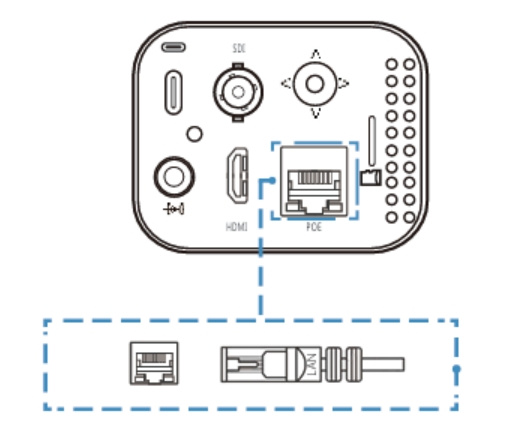
2、Power Connection
Option 1: USB-C Power
After powering the POVZoom with the power adapter the indicator light will illuminate.
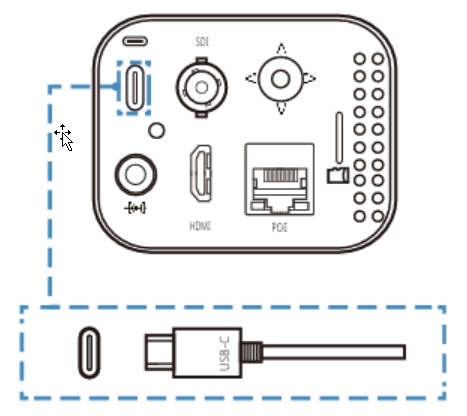
Option 2: PoE Power
The POVZoom can also be powered through Ethernet (PoE/PoE+), eliminating the need for a power adapter. When using PoE, connect the Ethernet cable to a PoE Network Switch; the cable should be at least a CAT5e ethernet cable.
3、 Network Control of the Camera
The POVZoom offers seven convenient and quick methods to access the web-based control interface
(1)Login to POVZoom via mDNS
Please enter http://povzoom-xxxxx.local in your computer or mobile phone browser
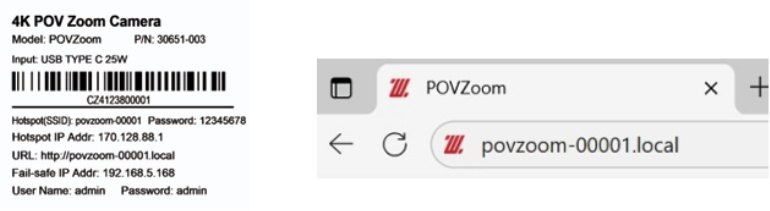
Notes: The label locates at the bottom of POVZoom, and the URL address can be found in the label. It is best to take a photo of the label and save it so that you can quickly find URL the next time.
(2) IP Address
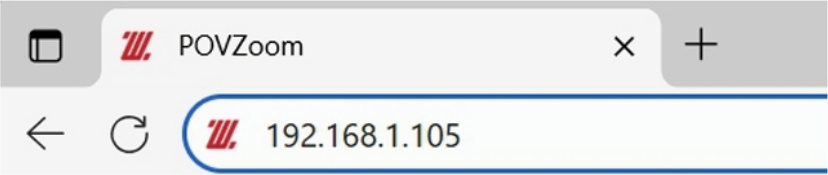
POVZoom’s DHCP is on by default. Please connect the HDMI/SDI output to the monitor, the IP address will be automatically displayed at the upper left corner at anytime after POVZoom turned on; or press the MENU button to call out the OSD menu instantly to check the IP address. Input the IP address in the browser of mobile phones or computers in the same LAN to login the web control interface.
(3) Login POVZoom by Hotspot
You can connect to POVZoom directly without the need of a network cable or WiFi network. Connect your mobile device to the hotspot of POVZoom, and it is on by default. The initial password and name of the hotspot are on the back of POVZoom. After connecting to the hotspot, enter http://170.128.88.1 in the browser to log intto the wbe console, when connecting to the hotspot, your cell phone may indicate that there is no network, this is normal, please continue to connect.
(4) Login to POVZoom by Device Discover
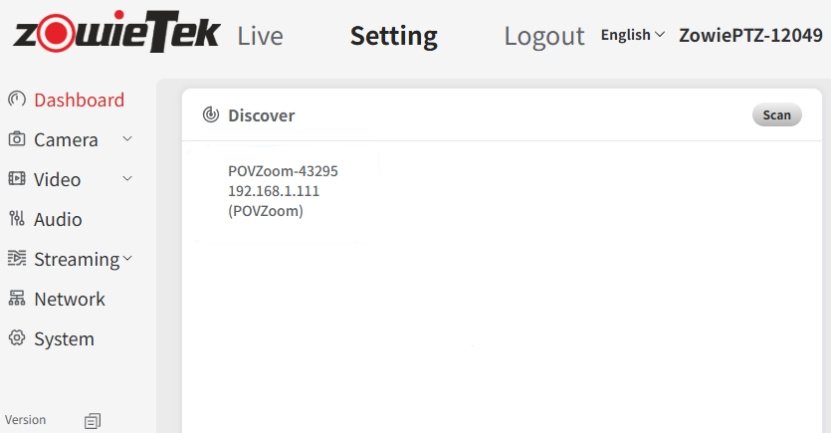
If you already have POVZoom, you can also login to the new POVZoom by device discover, log into the web control page, and click “Setting->Dashboard” to use the discovery function. After clicking “Scan”, find the serial number of the device that matches with the new POVZoom label and click it to the web control interface of the device.
(5) Fail-Safe IP
When the connected network does not have DHCP function, when POVZoom is directly connected to the computer via a network cable, or other unknown errors occur, the IP of POVZoom will change to a fail-safe IP (192.168.5.168). To access the web-based control interface, you need to add the 192.168.5.x network segment on your computer.
Notes: Username: admin; Password: admin (
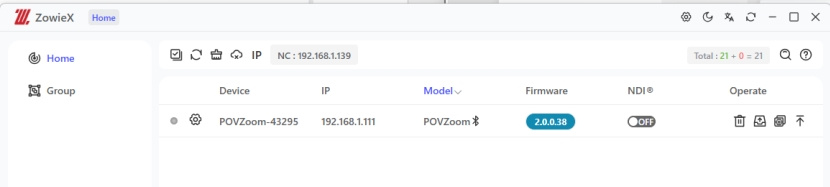
(6) Login POVZoom by ZowieX
Download and install ZowieX, and you can search for all Zowietek series devices in the same LAN. Users can quickly log into the POVZoom web console, or use ZowieX to manage and upgrade multiple POVZoom.